
-
All Products
- Hydraulic Power Systems & Components
- Shop all
- Hydraulic Pumps & Accessories
- Hydraulic Motors & Accessories
- Hydrostatic Transmissions
- Cylinders & Accessories
- Steering Units & Accessories
- Hydraulic Valves & Accessories
- Shop all
- Ball Valves
- Check Valves
- Check Valves (Pilot-Operated)
- Counterbalance Valves (Overcenter Valves)
- Cushion Valves (Double Relief Valves)
- Directional Control Valves
- Flow Control Valves
- Flow Divider Valves
- Gate Valves
- Logic Element Valves
- Needle Valves
- Plug Valves
- Pressure Reducing Valves
- Relief Valves
- Sandwich Valves
- Premium Selector Valves
- Slip-In Cartridge Valves
- Premium Stack Valves
- System Accessory Valves
- Premium Truck Valves
- Valve Accessories
- Electronic Control Components
- Pressure Sequence Valves
- Screw-In Cartridge Valves
- Motion Control Valves
- Shop Logic Element Valves
- Unloading Valves
- Drain Valves
- Hydraulic Filters & Accessories
- Power Units
- System Accessories
- High Force Hydraulics
- Pneumatic Power & Control
- Shop all
- Pneumatic Cylinders
- Pneumatic Valves & Accessories
- Pneumatic Air Line Filter, Regulator, & Lubicator (FRL's)
- Pneumatic Air Line Filters
- Premium Air Tool Hose Assemblies
- Air Line Lubricating Oil
- Safety Pop-Off Valves
- Pneumatic Air Line Filter & Regulator
- Pneumatic Air Line Filter Accessories
- Pneumatic Air Line Lubricators
- Pneumatic Air Tools
- Pneumatic Air Line Filter, Regulator, & Lubricator (FRL's)
- Pneumatic Air Line Regulators
- Pneumatic Cylinder Accessories
- Fluid Conveying
- Shop all
- Hose Products
- Tubing Products
- Piping Products
- Adapters
- Shop all
- Steel
- Shop all
- O-Ring Face Seal Braze Adapters
- O-Ring Face Seal To Straight Thread O-Ring
- O-Ring Face Seal To Pipe
- O-Ring Face Seal To 37° Flare
- O-Ring Face Seal To O-Ring Face Seal
- O-Ring Face Seal Accessories
- Pipe To Pipe
- Pipe to 37° Flare
- Pipe To Straight Thread O-Ring
- Pipe To Hose
- 37° Flare Union
- Straight Thread O-Ring to 37° Flare
- Straight Thread O-Ring to Straight Thread O-Ring
- Straight Thread O-Ring to Hose
- SAE Split Flange To 37° Flare
- SAE Split Flange To O-Ring Face Seal
- Braze & Weld to 37° Flare
- 42° Inverted Flare to 37° Flare
- Restrictor
- Metric to 37° Flare
- Metric to Pipe
- Metric
- BSPP to 37° Flare
- BSPP to Pipe
- BSPP to Metric
- BSPP to BSPT
- BSPP
- BSPT To Pipe
- BSPT To 37° Flare
- JIS
- JIS 30° Seat (BSPP Thread) To 37° Flare
- Komatsu, Kobelco
- BSPP to 37 deg Flare
- BSPT To JIS
- 37 deg Flare Union
- Pipe to 37 deg Flare
- Straight Thread O-Ring to 37 deg Flare
- O-Ring Face Seal To BSPP
- SAE Split Flange To 37 deg Flare
- Straight Thread O-Ring to Metric
- Metric to 37 deg Flare
- Straight Thread O-Ring to Pipe
- 37 deg Flare Plug
- BSPT To 37 deg Flare
- JIS 30 deg Seat (BSPP Thread) To 37 deg Flare
- O-Ring Face Seal To JIS
- Straight Thread O-Ring to BSPP
- O-Ring Face Seal To Metric
- SAE Split Flange To Pipe
- Auxiliary Components
- O-Ring Face Seal To 37 deg Flare
- Straight Thread O-Ring to JIS
- Braze & Weld to 37 deg Flare
- Metric to BSPT
- Pipe To STC (Snap to Connect)
- BSPP To Hose
- Flareless Fittings
- Braze & Weld to Pipe
- SAE Split Flange To SAE Split Flange
- SAE Split Flange To Straight Thread O-Ring
- 42 deg Inverted Flare Union & Accessories
- Push-to-Connect To STC (Snap to Connect)
- O-Ring Face Seal To STC (Snap to Connect)
- BSPT
- Pipe To 30 deg Flare
- SAE Split Flange Braze Adapters
- BSPT To Hose
- 42 deg Inverted Flare to 37 deg Flare
- Push-On to 37 deg Flare
- O-Ring Face Seal To Hose
- Stainless Steel
- Shop all
- Pipe To Pipe
- Pipe To 37° Flare
- 37° Flare Union
- Straight Thread O-Ring To 37° Flare
- Metric To 37° Flare
- BSPP To 37° Flare
- Auxiliary Components
- Metric
- BSPP
- 37 deg Flare Union
- BSPP To Pipe
- Straight Thread O-Ring To Pipe
- Pipe To 37 deg Flare
- BSPP To 37 deg Flare
- Metric To Pipe
- Metric To 37 deg Flare
- BSPP To Metric
- O-Ring Face Seal To Pipe
- Straight Thread O-Ring To 37 deg Flare
- BSPT To 37 deg Flare
- O-Ring Face Seal To Straight Thread O-Ring
- Straight Thread O-Ring To Straight Thread O-Ring
- SAE Split Flange To 37 deg Flare
- Pipe To Hose
- 37 deg Flare To Hose
- O-Ring Face Seal To O-Ring Face Seal
- 37 deg Flare Plug
- Straight Thread O-Ring To BSPP
- Braze & Weld to Pipe
- Metric to BSPT
- BSPT To Pipe
- BSPT
- Brass
- Shop all
- Pipe To Pipe
- Pipe To 37° Flare
- Pipe To 45° Flare
- 45° Flare Union
- 42° Inverted Flare To 45° Flare
- 42° Inverted Flare To Pipe
- 42° Inverted Flare Unions & Accessories
- Garden Hose Adapters
- Pipe To 45 deg Flare
- Braze & Weld to Pipe
- 42 deg Inverted Flare To Pipe
- 45 deg Flare Union
- BSPP
- 45 deg Inverted Flare Union
- Pipe To 37 deg Flare
- 37 deg Flare Union
- Pipe To Hose
- BSPP To Pipe
- 37 deg Flare To Hose
- BSPT To Hose
- 42 deg Inverted Flare To 37 deg Flare
- 45 deg Flare To Hose
- 45 deg Inverted Flare To Pipe
- BSPT
- 45 deg Inverted Flare To Hose
- BSPP to BSPT
- 37 deg Flare Plug
- 45 deg Inverted Flare To Tube
- O-Ring Face Seal Braze Adapters
- BSPP To Hose
- BSPT To Pipe
- Metric to Flare
- BSPT To 45 deg Flare
- Metric
- Metric To Pipe
- Stainless Steel Steel
- Hydraulic Quick Disconnects
- Miscellaneous Fluid Conveying Parts
- Shop all
- Flanges
- Metric & BSP Seals & Washers
- Protective Closures
- Split Flange Kits & O-Rings
- Support Clamps
- Swivel Joints
- Air Brake Products
- Hose, Tube & Pipe Cleaning System
- Flange Accessories
- Hose, Tube & Pipe Cleaning System Accessories
- Brake Hose Accessories
- Hose Accessories
- Support Clamp Accessories
- Fitting Assortments
- Performance Parts
- Shop all
- Hose
- Adapters
- Brake System Adapters
- Fuel System Components
- Couplings
- PRO CLAMP and Overbraid
- Accessories
- Reusable Fittings for AQP & Starlite Racing Hose
- Crimp Fittings for AQP & Starlite Racing Hose
- Fittings for AQP Socketless Hose
- Reusable Fittings for Aeroquip FBF A/C Hose
- Fittings for Teflon Racing Hose
- Reusable Fittings for AQP High Pressure Hose
- Assembly Equipment
- Hydraulic Brake Components
- Other Products
- Shop all
- Hydraulic Fluids & Oils for Industrial Systems
- Seals
- Industrial Chemical Maintenance Products
- Lubrication Equipment & Accessories
- Fasteners
- Valves
- Couplings
- Bearings
- Control Cables
- Thread Sealants
- Gloves
- Hand Tools
- Pressure Washer Products for Industrial & Commercial Use
- Hose Reels
- Winches
- Cable Hardware & Knobs
- Cable Remote Controls
- Industrial Corrosion Inhibitors
- Y Strainer
- Hose Nozzles
- Textbooks
- Cable (Wire) Ties
- Piston Vibrators
- Software Licenses
- Human Machine Interface & Accessories
- Safety Glasses
- Hydraulic Punches & Dies
- Thread Sealant Tapes
- Identification Tools
- Gasket Makers
- Threadlockers
- Tool Storage
- Temperature Controllers & Accessories
- Brazing Rods
- Gear Drives & Accessories
- Gauges
- Drill Bits
- Paint Markers
- Switches & Accessories
- Power Tools
- Cut-Off Wheels
- Work Lights
- Cleaning Cloths & Towels
- Hose Reel Accessories
- Labels
- Flashlights
- Shirts
- Pipe Wrapping Tapes
- Batteries
- Winch Parts & Accessories
- Pen Lights
- Hydraulic Power Systems & Components
-
Services
- 24/7 On-Site Mobile Services
- Control Cable Assemblies
- Crimper Maintenance Program
- Custom Hydraulic Components Fabrication
- Cut & Weld
- Danfoss x20 Stock Change Program
- Engineering Center Services
- Hose Kitting Services
- HPU Build Program
- Hydraulic & Industrial Hose Assemblies
- Hydraulic Repair & Service
- Tube Bending Services
- Vane Pump Build Program
- View All Services
- Branch Locations
- Catalogs
- Help
- Quick Order
SAME DAY SHIPPING
— Order by 2pm EST.
How to Use My Quotes
Published July 14, 2026 | Last Updated July 22, 2026

If you request quotes from Hydraulic Supply, My Quotes keeps every one of them in a single place inside your account. Review pricing, check a quote’s status, download or print a copy, accept a quote and check out, and pick up the conversation with our team — all online, whenever it’s convenient.
Here’s how to use it, step by step.
What you can do with My Quotes
- See every quote in one place — each quote and its current status in one list.
- Review the details — line items, quantities, and pricing, including any negotiated changes.
- Download or print a copy — save a PDF or print a clean copy to share internally.
- Accept and check out — turn an approved quote into an order in a couple of clicks.
- Keep the conversation on record — comment on a quote and see the full history in one thread.
How to use My Quotes, step by step
Step 1 — Create a quote from your cart
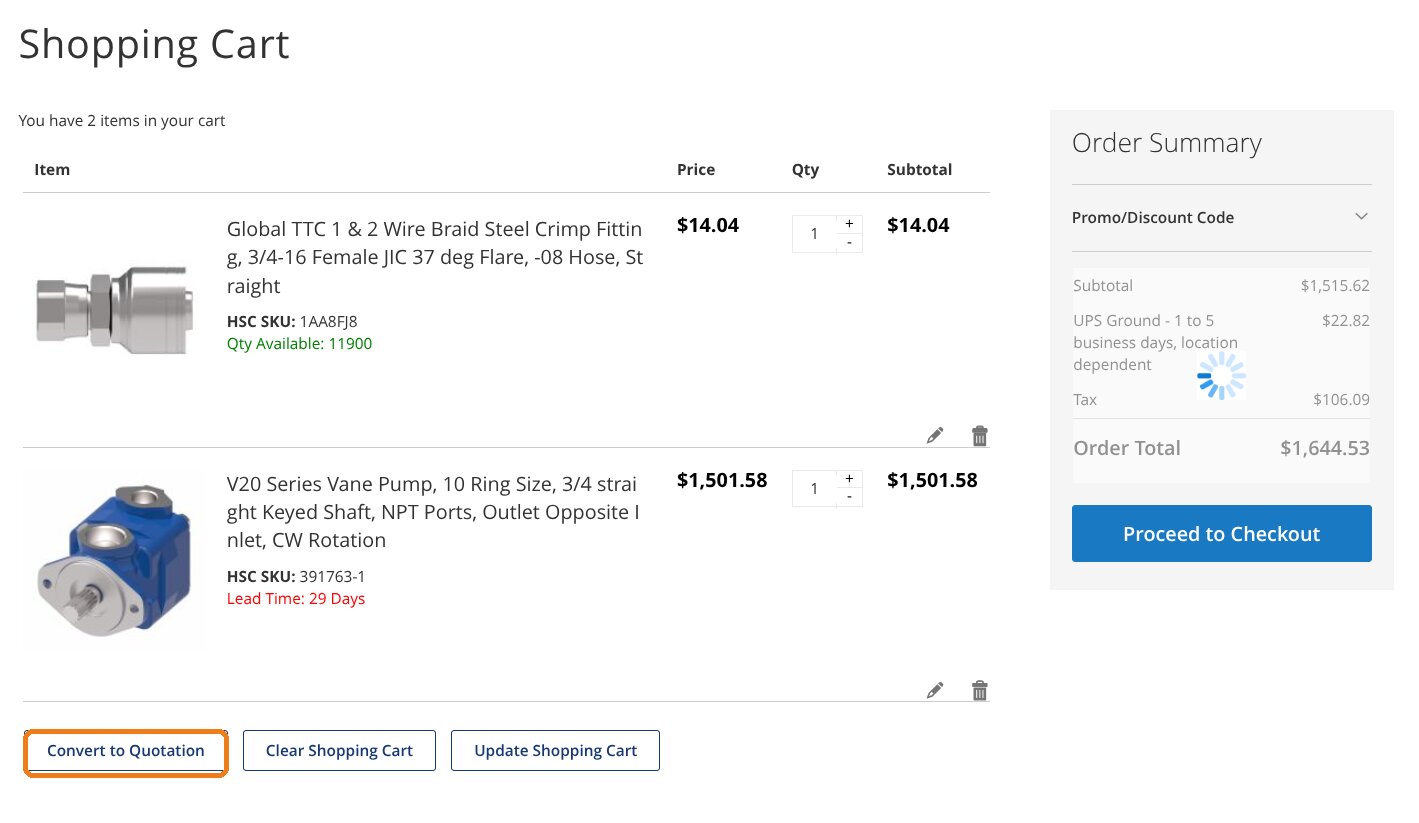
Add the items you need to your cart, then choose Convert to Quotation. This sends your request to our team and creates a quote you can track in your account.
Step 2 — Open My Quotes in your account
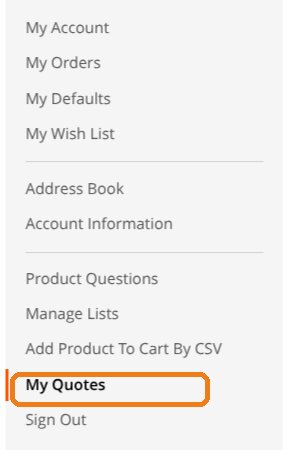
Log in and open your account dashboard, then select My Quotes — you’ll find it in your account menu alongside My Orders.
Step 3 — Review your quote list
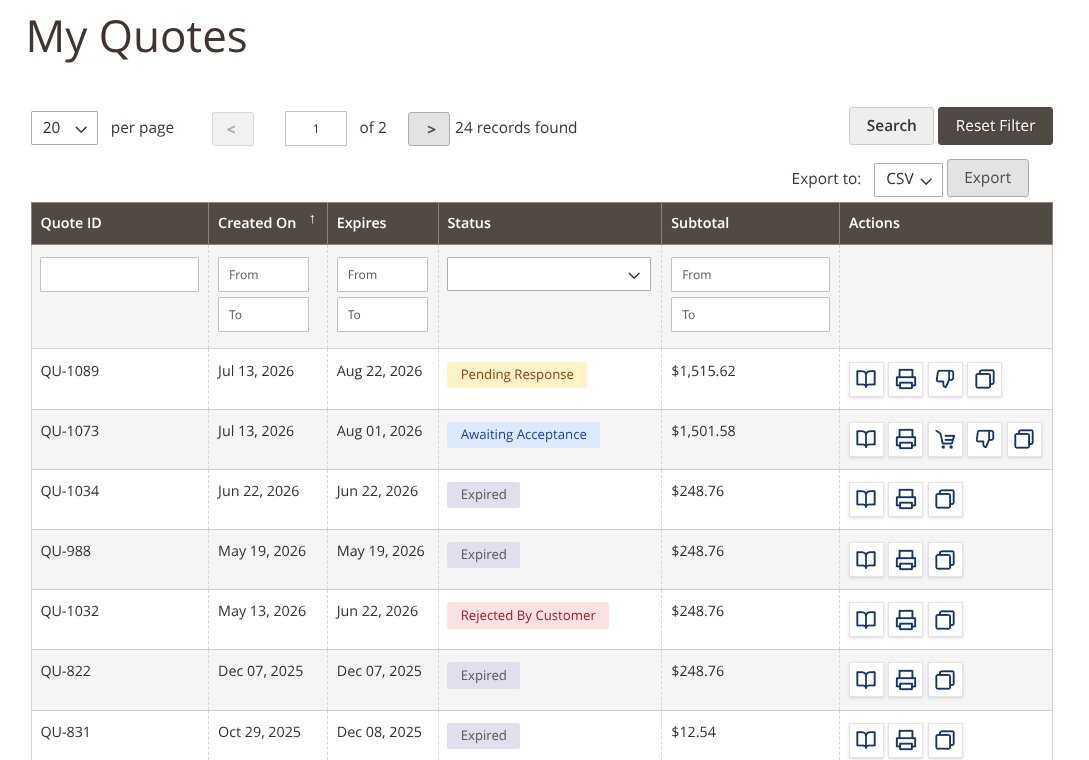
Your quote list shows each quote’s ID, the date it was created, its expiration date, its status, and the subtotal. Search by quote ID, sort by any column, and export the whole list to CSV — helpful if you manage a high volume of quotes.
Step 4 — Open a quote to see the details
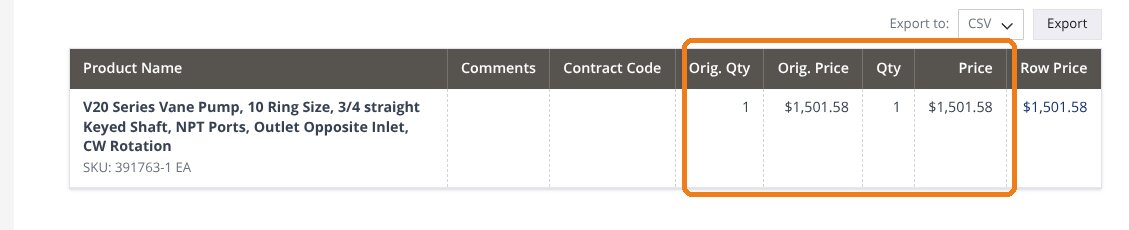
Select any quote to open its detail view. Each line item shows the original quantity and price next to the current quantity and price, so it’s easy to see exactly what changed. You’ll also see the quote’s status and how much time is left before it expires.
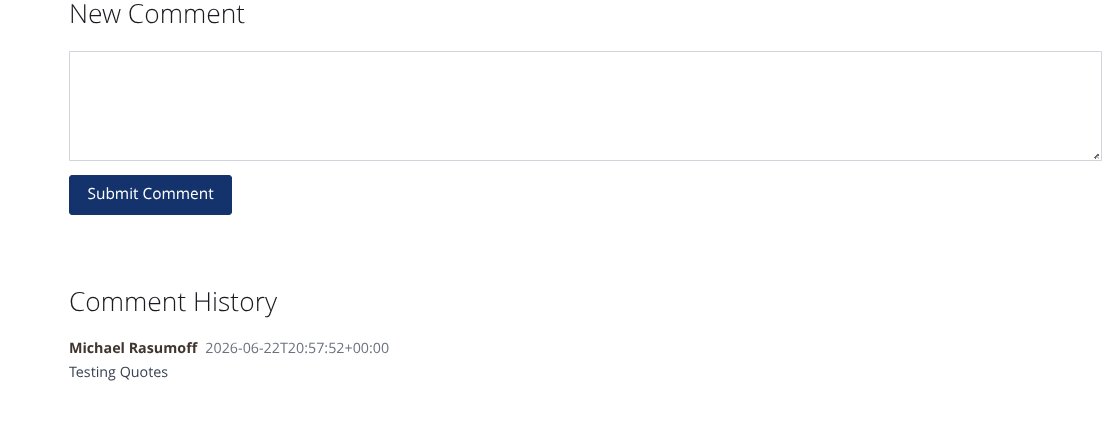
Step 5 — Comment on a quote
Have a question or a change to request? Add a comment right on the quote. Your comment and our replies are saved in the quote’s Comment History, so the full back-and-forth stays in one place.
How you’ll know when we’ve responded
You’ll receive an email whenever your quote’s status changes — including when we’ve reviewed it and it’s ready for you to accept. You can also open My Quotes anytime: the status updates in your list, and any reply from our team appears in the quote’s Comment History.
How to accept a quote and place your order
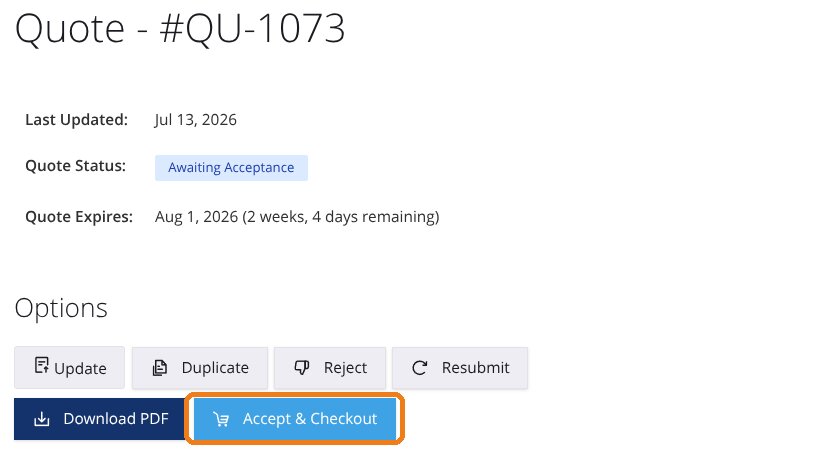
Once our team has reviewed your quote, its status changes to Awaiting Acceptance and we’ll email you. Open the quote and choose Accept & Checkout to turn it into an order and complete your purchase — or Reject it if it no longer works for you.
How to download or print a copy of your quote
There are two easy ways to get a copy:
- From an individual quote: open the quote and click Download PDF in the Options area to save a clean copy you can print or share.
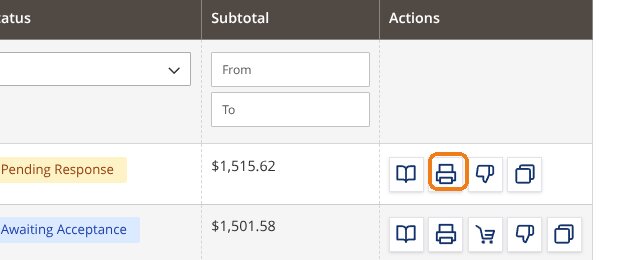
- From your quote list: click the print icon in the Actions column of any quote row to print it directly.
Actions you can take on a quote
Depending on a quote’s status, you can:
- View — open the full quote detail.
- Accept & Checkout — approve a quote and turn it into an order (once we’ve marked it Awaiting Acceptance).
- Download PDF — save or share a clean copy (from the quote detail).
- Print — print a quote directly from your quote list.
- Duplicate — start a new quote from a past one for a fast re-quote or reorder.
- Update — request changes to quantities or items.
- Reject — decline a quote you no longer need.
- Export to CSV — download your quote list (or a quote’s line items) as a spreadsheet.
FAQs
How long is a quote valid?
Quotes are valid for 40 days from the day you create them. Your quote list and the quote’s detail view show the exact expiration date and a countdown of the time remaining; once it passes, the status changes to Expired.
What do the quote statuses mean?
- Pending Response — we’ve received your quote and are reviewing it.
- Awaiting Acceptance — we’ve reviewed it; it’s ready for you to Accept & Checkout or Reject.
- Expired — the quote passed its 40-day window.
- Rejected — the quote was declined, either by you or by our team.
How do I turn a quote into an order?
When a quote’s status is Awaiting Acceptance, open it and click Accept & Checkout to complete your purchase. See “How to accept a quote and place your order” above.
Can I change a quote after it’s created?
Yes. Open the quote and use Update to request changes to quantities or items, or add a comment describing what you need. Our team will review and respond.
What’s the difference between the original and current price?
On a quote’s detail view, each line shows the original quantity and price alongside the current quantity and price, so you can see exactly what changed from your initial request.
Can I reorder from a past quote?
Yes — use Duplicate to start a new quote from a previous one. It’s a quick way to re-quote or reorder items you buy regularly.
Who can see my quotes?
Your quotes are private to your login — only you can see the quotes created under your account.
How do I get a PDF copy of a quote?
Open the quote and click Download PDF. See “How to download or print a copy of your quote” above.
Log in to your account to open My Quotes, or contact our team if you need a hand.

Share on Facebook

Share on X

Share on Pinterest
Quick Add Product
Account Summary
Short Code:
Credit Limit:
Current Balance:
Recent Posts


Tell us what you need and we'll get back to you.
Fields marked * are required.
Thanks — your inquiry's on its way